Introduction
Many organisations use Zscaler to deliver policy-based, secure access to private applications and assets without the costs of VPNs. Zscaler also serves to enforce internet policies to end users to prevent access to malicious website either intentionally or unintentionally.
Zscaler services are normally disabled either at the server side or locally with the use of passphrase. In 2023, LRQA discovered a vulnerability in Zscaler that allowed unauthorized users to disable both Private Access and Internet Security controls.
LRQA partnered with the Zscaler Security Team to work on remediation. A coordinated disclosure process was followed by both teams, which led to a fixed release in November 2023.
Vulnerability Details
- Date: 2023-01-02
- CVE: CVE-2023-28802
- Product: Zscaler Client Connector 3.6.1.23
- Fixed from: ver. 4.2.0.149
Abstract
A user could disable Zscaler Internet Access (ZIA) or Zscaler Private Access (ZPA) from the Machine Tunnel diagnostics page without a password.
Summary
A low privileged user normally cannot disable Zscaler unless they know the “exit Zscaler Client Connector” password. A user may want to disable Zscaler to access prohibited websites; however, this may put company and clients’ data and assets at risk.
Companies often rely on the strict rules implemented on the Zscaler Client Connector to ensure an employee can access only authorized destinations (i.e. network traffic restrictions). A low privileged employee cannot turn off Zscaler unless they know the Zscaler Client Connector “Exit” password; also, they can't disable the Zscaler services in normal circumstances, as that requires administrative privileges.
During a routine assessment, it was identified that when the Windows screen is locked, an unauthorized low privilege user can turn off Zscaler traffic control by interrupting the “Service Restart” process.
Background
Corporate images may have the Zscaler interface running at the Windows Login as shown in the image below.
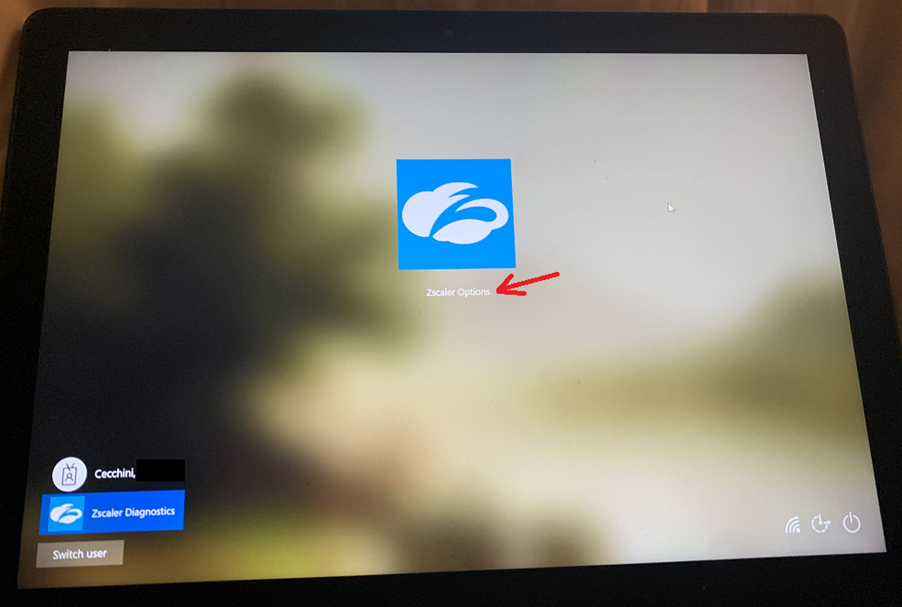
This functionality is understood to be created to let a new employee log in for the first time, when the laptop does not have the AD credential cached. Other scenarios may also require this interface, for instance after an AD password reset.
LRQA identified a trivial way to interrupt the Zscaler services by leveraging this Diagnostics functionality; in fact, one of the Zscaler Diagnostic tool functionalities is to let a user only restart the service.
Stopping the service is not an option offered by the tool. In fact, stopping the Zscaler service would mean that the Internet Security gets deactivated. Normally, an employee would need to know the “exit Zscaler Client Connector” password to turn off Zscaler client functionalities.
Steps to Reproduce
The advantage of this attack for a malicious employee is to bypass the company Internet policy and access unauthorized/dangerous network destinations.
To reproduce the attack, the malicious user goes through the following steps:
- Log into their MS account as they would normally with Windows Credentials.
- Lock the screen (Windows key + L).
- Click on Zscaler Diagnostics.
- Click on Zscaler Options.
- Once the Zscaler Diagnostics window opens, click on the Diagnostics tab.
- Click on “Restart Service”.
- Before the service completes the restart, press ALT + F4.
- Service restart failed - the attacker can now log into Windows with their credentials and see Zscaler Internet Security and Tunnel are turned OFF.
- The attacker can now access arbitrary web destinations.
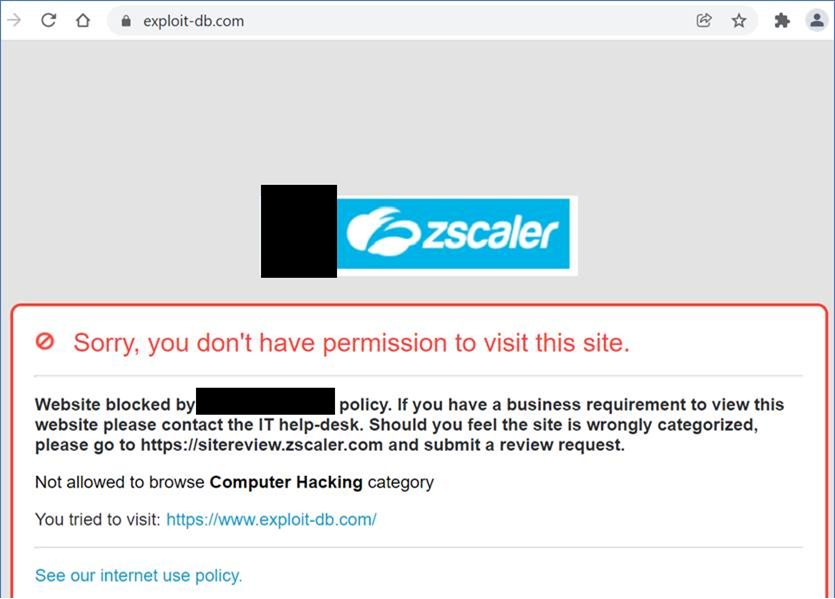
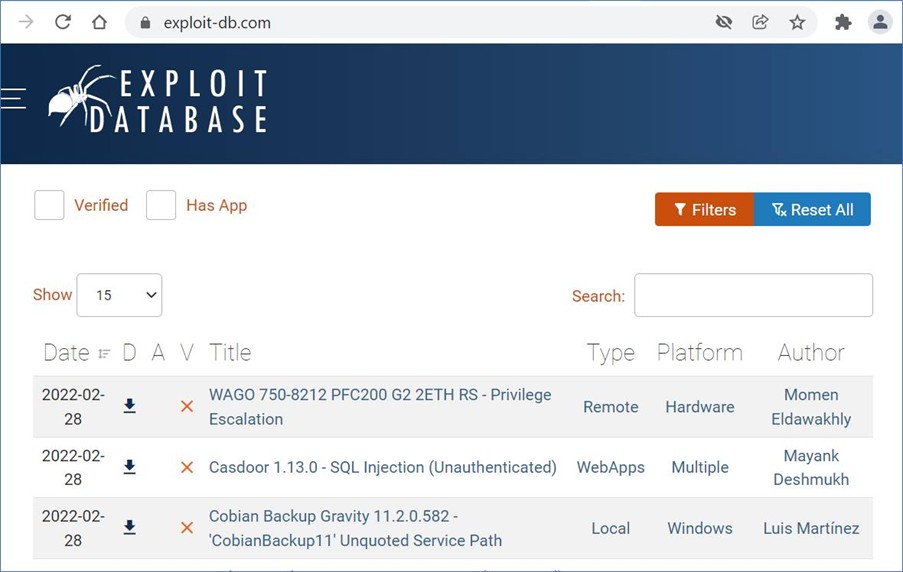
Under normal circumstances, Internet Security and Tunnelling are turned on when the device boots. In LRQA’s example below, before the steps above were followed, the website “exploit-db.com” was blocked:
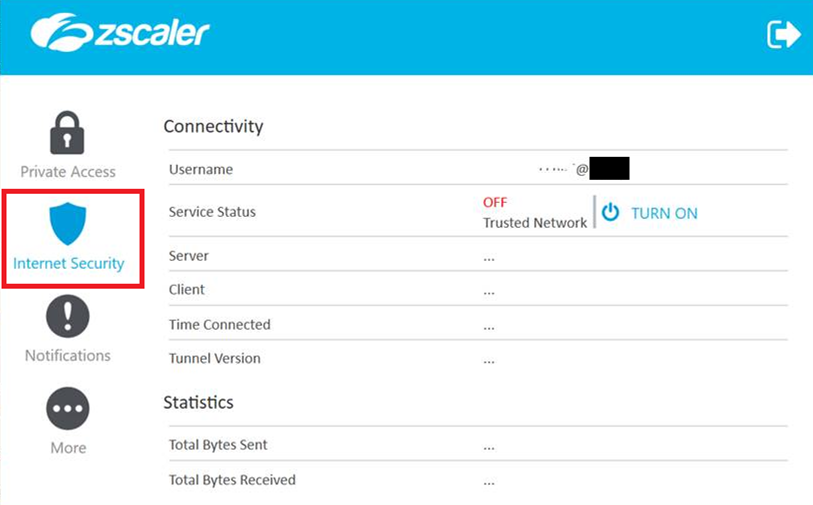
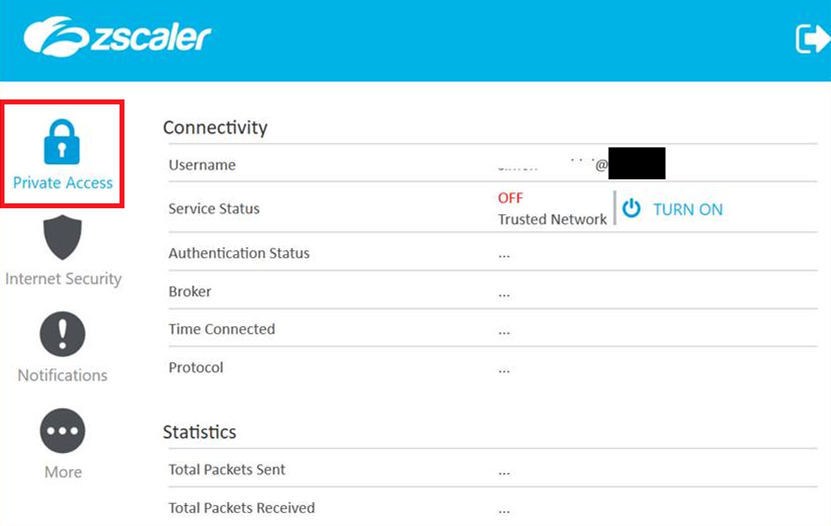
After the attack, the services were turned off as shown in the two pictures below:
Internet Security OFF:
Private Access OFF:
With these services disabled, access to the blocked website is permitted:
Zscaler has collaborated with LRQA to release a fix. The remediation was tested on Zscaler Client Connector 4.2.0.198.